

Description
Download AOMEI OneKey Recovery – Free PC Backup & Restore Tool
Overview – What Is AOMEI OneKey Recovery?
AOMEI OneKey Recovery is a Windows‑based backup and restore utility designed to give PC owners a fast, reliable safety net for their operating system, applications, and personal settings. Developed by the reputable backup‑software specialist AOMEI, the tool creates a complete image of the current OS environment and stores it on a drive of your choice. In the event of a system crash, boot failure, or accidental data loss, you can instantly retrieve the saved image with a single keystroke (F11 or the dedicated OneKey button on supported hardware). The program works independently of the PC manufacturer, meaning you can protect a Dell, HP, Lenovo, or custom‑built machine with the same ease. While Windows 10 and later include a built‑in backup feature, AOMEI OneKey Recovery adds extra flexibility: you can compress backups to save space, encrypt them with a password for added security, and schedule creation of restore points without navigating through the Windows Settings UI. A free trial lets new users explore the core functions before deciding on a license, and several paid options unlock advanced features such as unlimited backup storage and priority technical support. Overall, the software aims to simplify the traditionally complex process of system imaging, making it accessible to both novice users and IT professionals who need a dependable recovery solution.
Compatible Operating Systems: Windows 7, Windows 8/8.1, Windows 10, Windows 11 (both 32‑bit and 64‑bit editions)
Key Features That Set AOMEI OneKey Recovery Apart
- One‑Click System Imaging: Capture a full snapshot of your OS, drivers, installed programs, and user settings with a single command.
- Instant Restore via F11 or OneKey Button: Boot into a lightweight Windows PE environment and recover your system in minutes, even when Windows fails to start.
- Backup Compression: Reduce image size by up to 70 % using built‑in compression algorithms, freeing up disk space for additional restore points.
- Encryption & Password Protection: Secure your backups with AES‑256 encryption and a custom password, safeguarding sensitive data from unauthorized access.
- Flexible Storage Options: Save images to internal drives, external USB hard disks, network shares, or even cloud‑mounted locations.
- Scheduled Automatic Backups: Define daily, weekly, or monthly backup schedules to keep your system snapshot up‑to‑date without manual intervention.
- Manufacturer‑Neutral Design: Works on any PC brand, eliminating the need for OEM‑specific recovery tools.
- Free Trial & Tiered Licensing: Try core functions at no cost and upgrade to paid plans for unlimited backup storage, priority support, and advanced management features.
Installation, Usage, and System Compatibility
Step‑by‑Step Installation Guide
1. Download the installer: Visit the official AOMEI website and click the “Download Free Trial” button. The file size is under 30 MB, making it quick to retrieve even on slower connections.
2. Run the setup: Double‑click the downloaded .exe file. The wizard will request administrative privileges – this is required to access low‑level disk functions.
3. Accept the license agreement: Read the EULA, then click “I Agree” to continue.
4. Select components: By default, the core OneKey Recovery engine and the optional “Compression & Encryption” module are pre‑selected. Uncheck any components you do not need.
5. Choose installation folder: The default path (C:\Program Files\AOMEI\OneKeyRecovery) works for most users, but you can redirect to another drive if space is limited.
6. Complete the installation: Click “Install” and wait for the progress bar. Once finished, click “Finish” to launch the program automatically.
How to Create and Restore a Backup
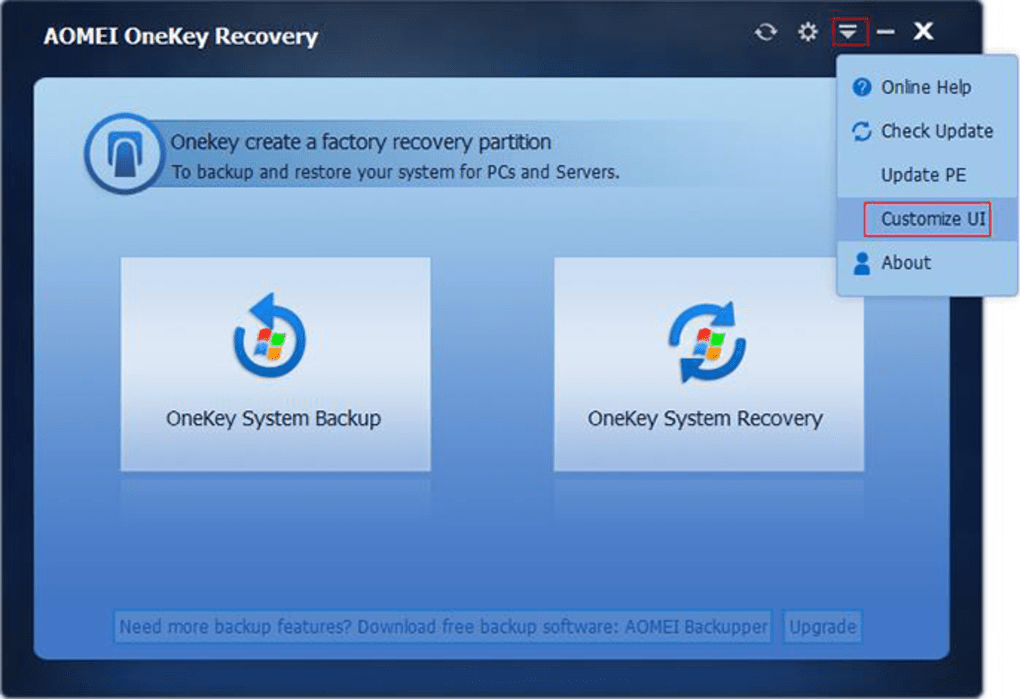
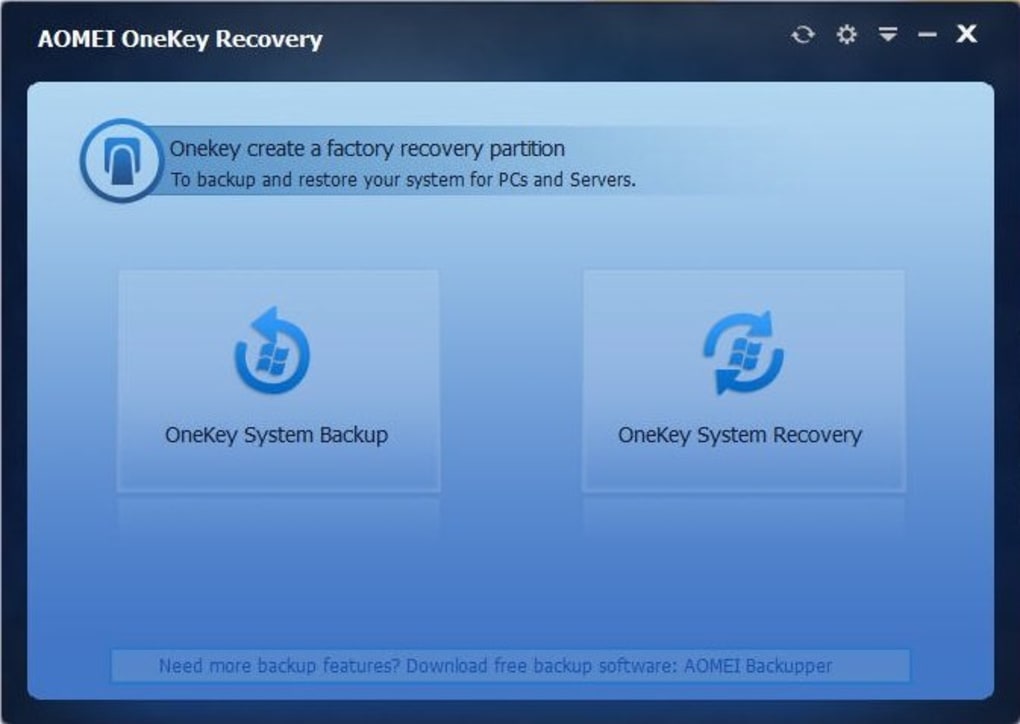
Creating a Backup: Open OneKey Recovery, select “Create Backup,” then choose a destination drive. You can enable compression and set a password on the same screen. Click “Start” and let the software scan your partitions. The process typically takes 10‑30 minutes depending on disk size and selected compression level.
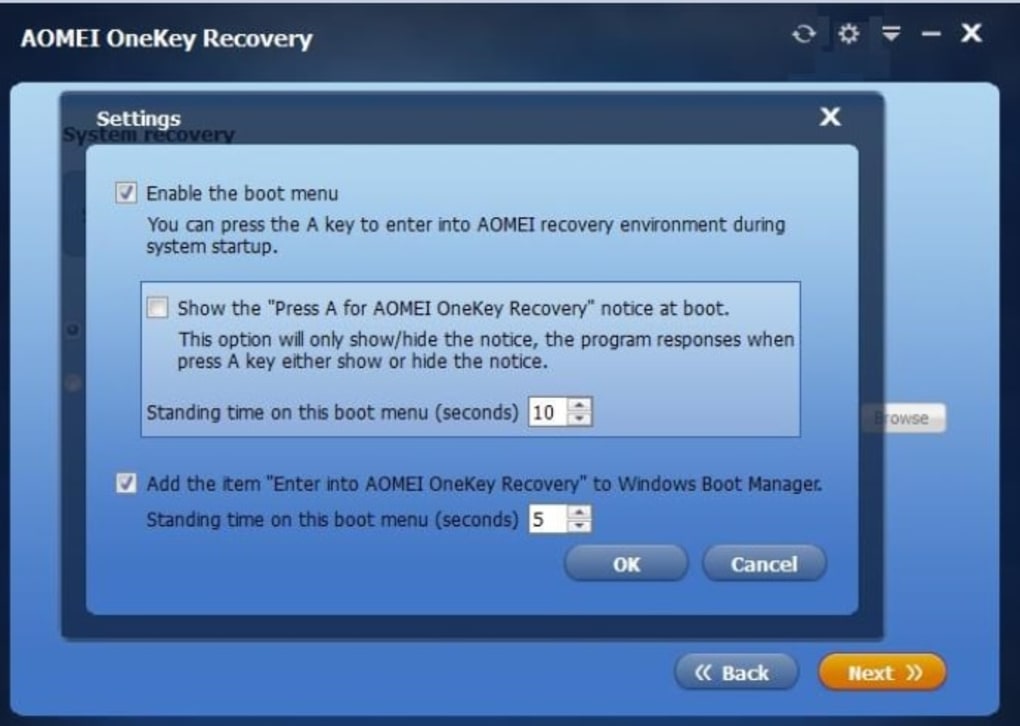
Restoring a Backup: Restart your PC and press F11 (or the dedicated OneKey button) as soon as the manufacturer logo appears. The system boots into a Windows PE environment where you’ll see a list of saved images. Choose the desired backup, enter the encryption password if required, and click “Restore.” The machine will reboot automatically once the restoration finishes, returning you to the exact state captured in the backup.
System Compatibility and Performance Considerations
AOMEI OneKey Recovery is engineered for Windows 7 through Windows 11, supporting both BIOS and UEFI firmware modes. The tool works on SSDs, HDDs, and hybrid drives, automatically adjusting block size for optimal speed. On modern NVMe SSDs, imaging can complete in under five minutes for a typical 250 GB system. Because the software runs in a low‑level environment during restore, it bypasses the Windows kernel, ensuring that even a completely unbootable system can be recovered. Minimum hardware requirements are modest: a 1 GHz processor, 2 GB RAM, and 500 MB of free disk space for the program itself. For large enterprise deployments, AOMEI offers a network‑license model that integrates with Active Directory for centralized management.
Pros and Cons – Quick Reference
- Pros:
- One‑click recovery eliminates complex manual steps.
- Compression and encryption keep backups small and secure.
- Works on any PC brand – no OEM lock‑in.
- Free trial provides full functionality for evaluation.
- Supports both BIOS and UEFI boot modes.
- Cons:
- Advanced features (unlimited backups, priority support) require a paid license.
- No native macOS or Linux version – Windows‑only.
- Initial backup creation can be time‑consuming on very large drives.
- Interface, while functional, looks dated compared to some competitors.
Frequently Asked Questions
Is AOMEI OneKey Recovery really free?
A free trial version is available and includes all core backup and restore functions. To unlock unlimited backup storage, priority technical support, and advanced scheduling, you’ll need to purchase a license.
Can I use OneKey Recovery on a brand‑new laptop that came with a pre‑installed recovery partition?
Yes. OneKey Recovery works independently of any OEM‑specific recovery tools, so you can create your own system images in addition to the factory partition.
How secure is the encryption feature?
The software uses AES‑256 encryption, which is considered military‑grade and is widely accepted as highly secure for personal and business data.
What happens if my backup drive fails?
Because OneKey Recovery allows you to store images on multiple destinations (external USB, network share, etc.), it’s recommended to keep at least two copies of critical backups. If one drive fails, you can simply select another saved image for restoration.
Does the software interfere with Windows Update or other security tools?
No. OneKey Recovery runs as a background service only during backup or restore operations. It does not block Windows Update, antivirus scans, or other security utilities.
Conclusion – Secure Your PC Today
AOMEI OneKey Recovery delivers a powerful, manufacturer‑agnostic solution for creating full‑system backups and restoring them with minimal effort. Its blend of one‑click recovery, compression, encryption, and flexible storage options makes it a compelling alternative to built‑in Windows tools and pricier competitors. Whether you’re a home user looking to protect personal files or an IT admin managing multiple workstations, the software’s intuitive interface and reliable engine provide peace of mind without a steep learning curve. Take advantage of the free trial to experience the seamless workflow, and consider upgrading to a paid license if you need unlimited backup sets or priority support. Download AOMEI OneKey Recovery now and safeguard your Windows PC against crashes, ransomware, and accidental data loss.
AOMEI OneKey Recovery impresses with its straightforward backup process and robust restore capabilities. The ability to compress and encrypt images adds real value for users concerned about storage space and security. While the UI could use a modern refresh and the free tier limits the number of stored images, the overall reliability and speed make it a top choice for Windows users seeking an affordable disaster‑recovery tool.Guides & Tutorials for AOMEI OneKey Recovery
How to install AOMEI OneKey Recovery
- Click the Preview / Download button above.
- Once redirected, accept the terms and click Install.
- Wait for the AOMEI OneKey Recovery download to finish on your device.
How to use AOMEI OneKey Recovery
This software is primarily used for its core features described above. Open the app after installation to explore its capabilities.
User Reviews for AOMEI OneKey Recovery 0
No reviews found





